AI background cleanup for profile picture
AI Background Cleanup for Profile Picture
Clean up a profile picture background with AI while keeping the face, pose, lighting, and personal style natural.
Quick Answer
AI background cleanup for profile picture workflows help remove distracting objects, messy rooms, harsh background colors, or visual clutter while keeping the person natural. The safest prompt edits the background only and explicitly preserves the face, hair, outfit, and lighting.
A profile picture should still look like you. The goal is a cleaner presentation for LinkedIn, personal sites, creator profiles, or community avatars, not a completely different identity.
Step-by-Step Tutorial
Keep the edit narrow so the portrait remains trustworthy.
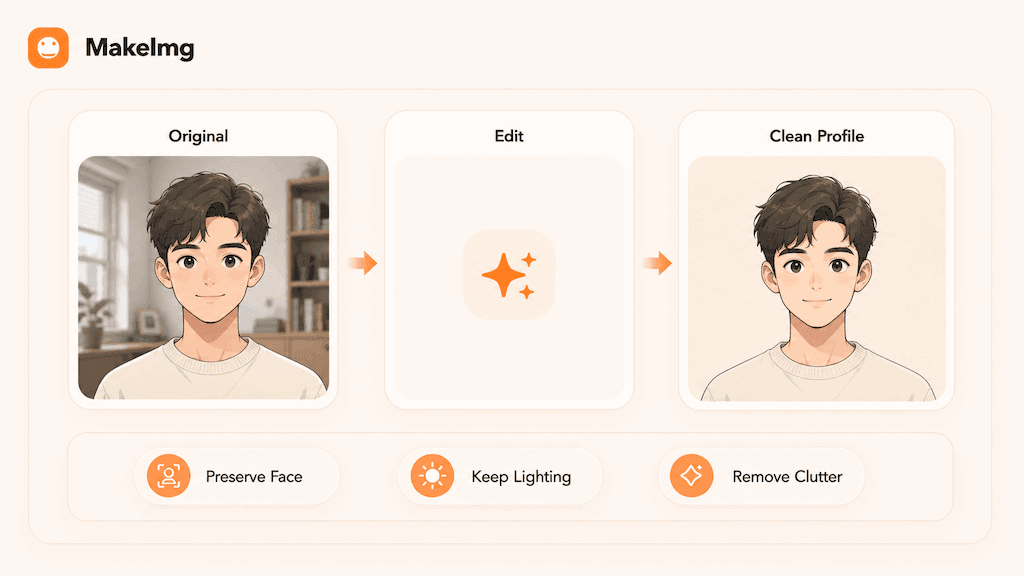
- 1
Choose a clear portrait
Use a photo where the face is sharp and not blocked. Background cleanup works better when the subject edges are clear.
- 2
Name the background problem
Mention the distracting object, messy wall, cluttered shelf, or uneven background that should be cleaned.
- 3
Preserve the person
Add keep face unchanged, preserve hair, preserve outfit, preserve natural lighting, and do not alter expression.
- 4
Request a simple replacement
Use neutral studio-like background, soft warm background, or clean blurred interior depending on the profile style.
- 5
Check edges and identity
Inspect hair, shoulders, glasses, and hands. If the edit changes the face, regenerate with a more restrictive prompt.
Best Use Cases
This workflow is useful for LinkedIn avatars, creator profile images, community accounts, personal websites, author bios, and lightweight portfolio pages.
It is also helpful when you like the expression in a photo but the background is too distracting. AI cleanup lets you keep the human moment while improving the presentation.
Prompt Suggestions
Use preservation language for portrait edits.
- Clean up the background of this profile picture, remove visual clutter, keep the face, hair, outfit, pose, and lighting unchanged, natural result.
- Replace the messy background with a simple warm neutral background, preserve identity and expression, realistic portrait edit.
- Remove distracting objects behind the person, softly clean the background, keep the portrait natural and professional.
Quality Checklist Before You Generate
Editing quality is about controlled change. The best result should make the requested edit obvious while leaving everything else in the image stable. For a AI background cleanup for profile picture workflow, start by deciding what success looks like before you press generate. The output may be attractive, but it still needs to solve the original task: clearer restoration, a stronger reaction, a more natural composition, or a cleaner edit.
Check the input first. Make sure the source image, prompt, style choice, and final format all point in the same direction. If you are using MakeImg Edit, keep the instruction short enough for the model to follow and specific enough that it cannot ignore the main request.
- One clear subject or task is easier to control than several competing goals.
- Simple backgrounds usually improve readability and reduce unwanted artifacts.
- Consistent style words help the model keep the result cohesive across a full set.
- Download only after checking the result at the size where it will actually be used.
Common Mistakes to Avoid
The most common mistake is writing a broad prompt such as make this better. Broad prompts invite the model to change lighting, color, framing, or subjects that you wanted to preserve. This matters for SEO-style tutorial workflows too: people searching for AI background cleanup for profile picture usually want a usable result quickly, not a complex art experiment that needs many manual fixes afterward.
Before downloading, inspect the edited area and the surrounding edges. Object removal and cleanup often fail at shadows, repeated textures, reflections, and fine background patterns. If the first result is close but not ready, change one variable at a time. Edit the emotion list, simplify the style, clarify the reference roles, or narrow the edit instruction. Changing everything at once makes it hard to learn what improved the output.
Keep the original file and the generated result separate. That gives you a clean rollback point, makes comparison easier, and helps you regenerate later if you find a better prompt or model provider.
Publishing and Reuse Notes
After the output is ready, name the file in a way that matches the task, such as ai-background-cleanup-for-profile-picture. Clear filenames make it easier to find the asset later, especially when you are testing several MakeImg workflows in the same week.
If you plan to publish the image publicly, review rights, privacy, and context before posting. Use source material you own or have permission to use, avoid misleading claims, and keep a copy of the prompt so you can explain or reproduce the creative process later.
- Save the final image and the source image in the same project folder.
- Keep a short note with the prompt, style, and tool path used for generation.
- Recheck the output on mobile because most meme and social images are consumed there.
FAQ
Common profile-photo editing questions.
Can background cleanup change my face?
It can if the prompt is too broad. Use specific preservation language and review the result carefully.
Should I use a plain background?
A plain or softly blurred background usually works best because it keeps attention on the person.
Is this the same as generating a new headshot?
No. Background cleanup edits an existing portrait. A generated headshot may change more of the image and should be reviewed more carefully.
Create with MakeImg
Use this guide as a starting point, then try the matching MakeImg tool to generate, restore, compose, or edit your own images.
Open the tool