Etsy product photo cleanup AI
Etsy Product Photo Cleanup AI
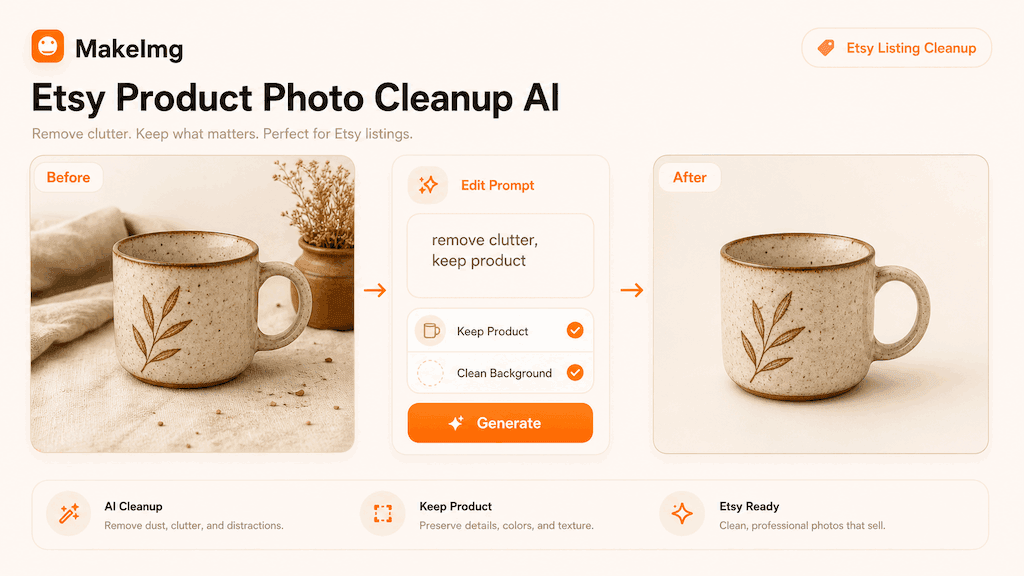
Clean up Etsy product photos with AI by removing distractions, improving background consistency, and keeping the product itself unchanged.
Quick Answer
Etsy product photo cleanup AI is useful when a listing photo has small distractions: dust, cables, background clutter, uneven tabletop texture, or objects near the product. The key instruction is to clean the scene while preserving the actual product.
For marketplace trust, the image should still represent what the buyer will receive. Use AI cleanup to improve presentation, not to change product features, size, material, or condition.
Step-by-Step Tutorial
Treat product cleanup as a controlled edit, not a full redesign.
- 1
Upload the best original photo
Start with the sharpest product image you have. AI cleanup cannot fully fix a poorly focused product shot.
- 2
Name the distractions
Specify what should be removed: dust on the table, small cable in the corner, background clutter, or uneven marks on the wall.
- 3
Protect the product
Add instructions such as keep the product unchanged, preserve texture, preserve shape, and do not alter colors.
- 4
Ask for realistic background repair
Use phrases like matching tabletop, clean neutral wall, natural shadow, or consistent surface texture.
- 5
Compare before publishing
Check that the edited image still matches the physical product. Accuracy matters for buyer trust and platform compliance.
Best Use Cases
This workflow works best for handmade goods, small accessories, stationery, ceramics, art prints, jewelry, home decor, and product detail shots where the main item is already clear.
It is less suitable for changing the actual product appearance. If the item has scratches, color variation, or handmade texture, do not remove details that buyers should know about.
Prompt Suggestions
Write cleanup prompts that separate product preservation from background editing.
- Clean this Etsy product photo by removing small background clutter and dust, preserve the product shape, color, texture, and natural shadow.
- Remove the cable in the upper left corner, fill with matching neutral wall, keep the handmade product unchanged.
- Improve the listing image with subtle background cleanup, consistent tabletop, realistic lighting, no changes to the item itself.
Quality Checklist Before You Generate
Editing quality is about controlled change. The best result should make the requested edit obvious while leaving everything else in the image stable. For a Etsy product photo cleanup AI workflow, start by deciding what success looks like before you press generate. The output may be attractive, but it still needs to solve the original task: clearer restoration, a stronger reaction, a more natural composition, or a cleaner edit.
Check the input first. Make sure the source image, prompt, style choice, and final format all point in the same direction. If you are using MakeImg Edit, keep the instruction short enough for the model to follow and specific enough that it cannot ignore the main request.
- One clear subject or task is easier to control than several competing goals.
- Simple backgrounds usually improve readability and reduce unwanted artifacts.
- Consistent style words help the model keep the result cohesive across a full set.
- Download only after checking the result at the size where it will actually be used.
Common Mistakes to Avoid
The most common mistake is writing a broad prompt such as make this better. Broad prompts invite the model to change lighting, color, framing, or subjects that you wanted to preserve. This matters for SEO-style tutorial workflows too: people searching for Etsy product photo cleanup AI usually want a usable result quickly, not a complex art experiment that needs many manual fixes afterward.
Before downloading, inspect the edited area and the surrounding edges. Object removal and cleanup often fail at shadows, repeated textures, reflections, and fine background patterns. If the first result is close but not ready, change one variable at a time. Edit the emotion list, simplify the style, clarify the reference roles, or narrow the edit instruction. Changing everything at once makes it hard to learn what improved the output.
Keep the original file and the generated result separate. That gives you a clean rollback point, makes comparison easier, and helps you regenerate later if you find a better prompt or model provider.
Publishing and Reuse Notes
After the output is ready, name the file in a way that matches the task, such as etsy-product-photo-cleanup-ai. Clear filenames make it easier to find the asset later, especially when you are testing several MakeImg workflows in the same week.
If you plan to publish the image publicly, review rights, privacy, and context before posting. Use source material you own or have permission to use, avoid misleading claims, and keep a copy of the prompt so you can explain or reproduce the creative process later.
- Save the final image and the source image in the same project folder.
- Keep a short note with the prompt, style, and tool path used for generation.
- Recheck the output on mobile because most meme and social images are consumed there.
FAQ
Marketplace-focused cleanup questions.
Can AI cleanup improve product listing conversion?
It can help by reducing distractions and making the product easier to inspect, but the image still needs to be accurate and trustworthy.
Should I change the product color?
No. Product color should match the actual item as closely as possible to avoid misleading buyers.
What edits are safest?
Background cleanup, dust removal, light surface repair, and distraction removal are safer than changing product features.
Create with MakeImg
Use this guide as a starting point, then try the matching MakeImg tool to generate, restore, compose, or edit your own images.
Open the tool