restore old photos online
Restore Old Photos Online
Learn how to restore old photos online with AI by improving clarity, color, scratches, fading, and overall image quality.
Quick Answer
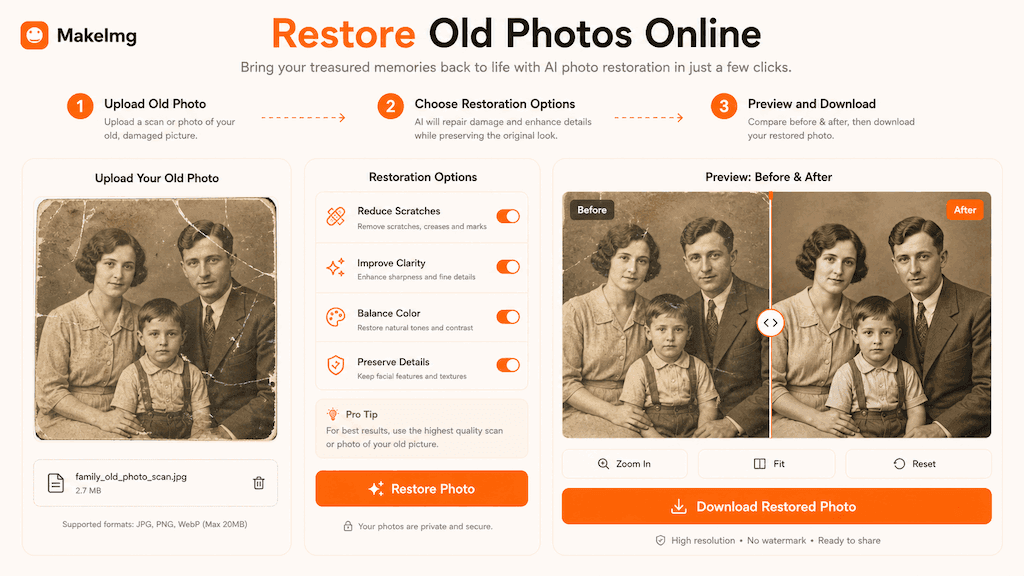
To restore old photos online, upload a high-quality scan or clear phone capture, choose an AI restoration workflow, and let the model improve sharpness, fading, color balance, and small surface damage. The best results come from preserving the original photo structure while asking for gentle cleanup.
MakeImg's restoration workflow is designed for faded family images, low-contrast portraits, and older photos that need a clearer modern presentation. It is not a replacement for archival conservation, but it can make everyday photos easier to view, share, and preserve digitally.
Step-by-Step Tutorial
Restoration quality depends heavily on the input image.
- 1
Scan or photograph the original carefully
Use even lighting and avoid glare. If using a phone, place the photo flat and keep the camera parallel to the image.
- 2
Upload the clearest version
Choose a JPG or JPEG image with enough resolution. Avoid compressed chat copies when you still have access to the original scan.
- 3
Use a restoration-specific prompt
Ask for gentle restoration, improved clarity, balanced color, reduced scratches, and natural skin texture. Avoid asking for a completely new face or unrealistic beauty edits.
- 4
Compare with the original
Check whether important features remain faithful to the source image. A good restoration improves readability without changing identity or historical character.
- 5
Download and archive
Save both the original and restored version. The original remains valuable as a source record, while the restored version is easier to share.
Best Use Cases
Online restoration works well for faded portraits, low-contrast family photos, light scratches, mild blur, and old prints that need better color balance. It is especially helpful when you want to share a family memory online or include it in a digital album.
For severely torn, missing, or historically sensitive photos, use AI restoration cautiously. Manual retouching or professional archival work may be more appropriate when accuracy is more important than visual improvement.
Prompt Suggestions
Use gentle language to preserve the photo's original character.
- Restore this old family photo with natural clarity, reduce fading and light scratches, keep facial features faithful, balanced color, realistic texture.
- Improve this faded portrait, enhance details and contrast, repair minor damage, preserve the original look, no dramatic style change.
- Clean up this old photo for a digital album, natural restoration, subtle color correction, sharper details, realistic finish.
Quality Checklist Before You Generate
Restoration quality is about believable improvement rather than dramatic reinvention. The photo should look clearer, cleaner, and easier to share while still feeling faithful to the original memory. For a restore old photos online workflow, start by deciding what success looks like before you press generate. The output may be attractive, but it still needs to solve the original task: clearer restoration, a stronger reaction, a more natural composition, or a cleaner edit.
Check the input first. Make sure the source image, prompt, style choice, and final format all point in the same direction. If you are using MakeImg Restore, keep the instruction short enough for the model to follow and specific enough that it cannot ignore the main request.
- One clear subject or task is easier to control than several competing goals.
- Simple backgrounds usually improve readability and reduce unwanted artifacts.
- Consistent style words help the model keep the result cohesive across a full set.
- Download only after checking the result at the size where it will actually be used.
Common Mistakes to Avoid
The most common mistake is over-correcting a fragile source image. Heavy sharpening, aggressive colorization, or beauty-style language can make restored faces look artificial. This matters for SEO-style tutorial workflows too: people searching for restore old photos online usually want a usable result quickly, not a complex art experiment that needs many manual fixes afterward.
Before downloading, compare the restored result with the original at normal size and at full size. Look especially at eyes, hands, hair, clothing edges, and background texture. If the first result is close but not ready, change one variable at a time. Edit the emotion list, simplify the style, clarify the reference roles, or narrow the edit instruction. Changing everything at once makes it hard to learn what improved the output.
Keep the original file and the generated result separate. That gives you a clean rollback point, makes comparison easier, and helps you regenerate later if you find a better prompt or model provider.
Publishing and Reuse Notes
After the output is ready, name the file in a way that matches the task, such as restore-old-photos-online. Clear filenames make it easier to find the asset later, especially when you are testing several MakeImg workflows in the same week.
If you plan to publish the image publicly, review rights, privacy, and context before posting. Use source material you own or have permission to use, avoid misleading claims, and keep a copy of the prompt so you can explain or reproduce the creative process later.
- Save the final image and the source image in the same project folder.
- Keep a short note with the prompt, style, and tool path used for generation.
- Recheck the output on mobile because most meme and social images are consumed there.
FAQ
Common restoration questions.
Will AI restoration change the person in the photo?
It can if the prompt asks for heavy enhancement or if the source is very blurry. Use gentle restoration prompts and compare the result carefully.
Is a scan better than a phone photo?
Usually yes. A scan gives more detail and less glare, but a careful phone capture can still work for many old prints.
Should I colorize black-and-white photos?
Only if you want an interpretive version. Colorization guesses colors, so keep the original black-and-white file as well.
Create with MakeImg
Use this guide as a starting point, then try the matching MakeImg tool to generate, restore, compose, or edit your own images.
Open the tool