combine two photos with AI
Combine Two Photos With AI
Combine two photos with AI by using one image as the subject reference and another as the style, outfit, object, or scene reference.
Quick Answer
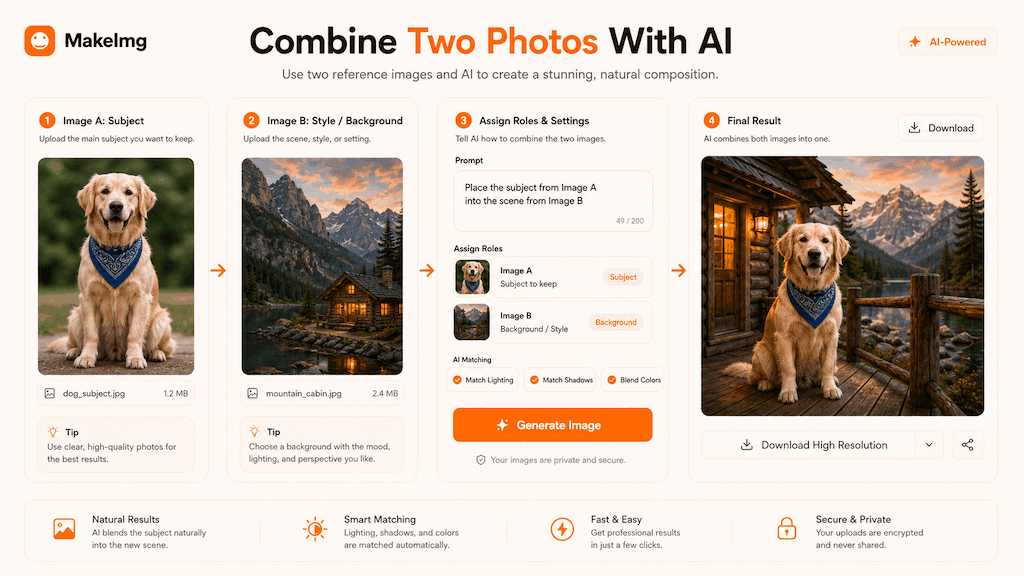
To combine two photos with AI, upload both references and describe how they should interact. One image might provide the subject while the other provides clothing, product style, background, pose, or visual mood. The prompt should clearly state which elements come from each image.
MakeImg's composition workflow is designed for this exact problem. Instead of manually masking and blending in an editor, you can give the model two visual inputs and a short instruction for the final image.
Step-by-Step Tutorial
A strong composition prompt assigns roles to the two source images.
- 1
Choose two compatible references
Use images with similar perspective or lighting when possible. AI can bridge differences, but extreme mismatch makes the final blend less natural.
- 2
Define the role of each image
Say image one is the subject and image two is the outfit, background, product, room style, or object reference. Do not leave the relationship implicit.
- 3
Write the final scene
Describe the final output as one coherent image, not two images pasted together. Mention composition, lighting, style, and what should stay unchanged.
- 4
Check identity and object details
After generation, inspect the important elements from each reference. If one source dominates too much, rewrite the prompt with clearer priority.
- 5
Regenerate for natural blending
Composition often improves after one or two prompt refinements. Focus on one correction at a time: lighting, pose, background, or object placement.
Best Use Cases
Two-photo composition is useful for product mockups, outfit visualization, pet styling, avatar references, interior ideas, and creative social content. It is especially helpful when you want to test a concept before making a real photo shoot.
Use clear rights and permissions for both source images. AI composition can be powerful, but it should not be used to mislead people about real events, endorsements, or ownership.
Prompt Suggestions
These examples show how to assign reference roles.
- Use image one as the pet subject and image two as the outfit reference. Create one natural portrait with the pet wearing the outfit, soft lighting, realistic fabric, clean background.
- Combine image one as the product and image two as the room style. Place the product naturally in the room, matching perspective and lighting.
- Use the first image for the character and the second image for color palette and background mood, create a cohesive illustration, no extra people.
Quality Checklist Before You Generate
Composition quality depends on whether the final image feels like one coherent scene. Lighting, scale, perspective, and material texture need to agree, even when the two source photos are very different. For a combine two photos with AI workflow, start by deciding what success looks like before you press generate. The output may be attractive, but it still needs to solve the original task: clearer restoration, a stronger reaction, a more natural composition, or a cleaner edit.
Check the input first. Make sure the source image, prompt, style choice, and final format all point in the same direction. If you are using MakeImg Compose, keep the instruction short enough for the model to follow and specific enough that it cannot ignore the main request.
- One clear subject or task is easier to control than several competing goals.
- Simple backgrounds usually improve readability and reduce unwanted artifacts.
- Consistent style words help the model keep the result cohesive across a full set.
- Download only after checking the result at the size where it will actually be used.
Common Mistakes to Avoid
The most common mistake is leaving the relationship between the two references vague. If the model does not know which image controls the subject and which controls the secondary detail, it may blend both poorly. This matters for SEO-style tutorial workflows too: people searching for combine two photos with AI usually want a usable result quickly, not a complex art experiment that needs many manual fixes afterward.
Before downloading, check whether the important detail from each reference survived. If one source dominates, rewrite the prompt with clearer roles and a single priority correction. If the first result is close but not ready, change one variable at a time. Edit the emotion list, simplify the style, clarify the reference roles, or narrow the edit instruction. Changing everything at once makes it hard to learn what improved the output.
Keep the original file and the generated result separate. That gives you a clean rollback point, makes comparison easier, and helps you regenerate later if you find a better prompt or model provider.
Publishing and Reuse Notes
After the output is ready, name the file in a way that matches the task, such as combine-two-photos-with-ai. Clear filenames make it easier to find the asset later, especially when you are testing several MakeImg workflows in the same week.
If you plan to publish the image publicly, review rights, privacy, and context before posting. Use source material you own or have permission to use, avoid misleading claims, and keep a copy of the prompt so you can explain or reproduce the creative process later.
- Save the final image and the source image in the same project folder.
- Keep a short note with the prompt, style, and tool path used for generation.
- Recheck the output on mobile because most meme and social images are consumed there.
FAQ
Common composition questions.
Can I combine more than two photos?
For the first version, two references are easier to control. More inputs increase ambiguity and can reduce consistency.
Why does one reference disappear?
The prompt may not define roles clearly. Specify which image provides the subject and which provides the secondary element.
Is this the same as manual Photoshop compositing?
No. AI composition generates a new blended image. It is faster for concepts, while manual editing offers exact pixel control.
Create with MakeImg
Use this guide as a starting point, then try the matching MakeImg tool to generate, restore, compose, or edit your own images.
Open the tool