photo to meme generator
Photo to Meme Generator
A practical guide to using a photo to meme generator, from choosing the right source image to writing prompts that create readable reactions.
Quick Answer
A photo to meme generator works best when you upload a clear image, choose a visual style, write a short reaction prompt, and generate a set of meme variations. The most reliable results come from prompts that define the emotion and scene while keeping the source subject stable.
MakeImg is useful when you want more than a caption pasted on top of a photo. It can reinterpret the image into a meme-ready style, create multiple reactions, and export the result as a grid or individual assets for chat and social platforms.
Step-by-Step Tutorial
A photo-to-meme workflow works best when each step reduces ambiguity for the model.
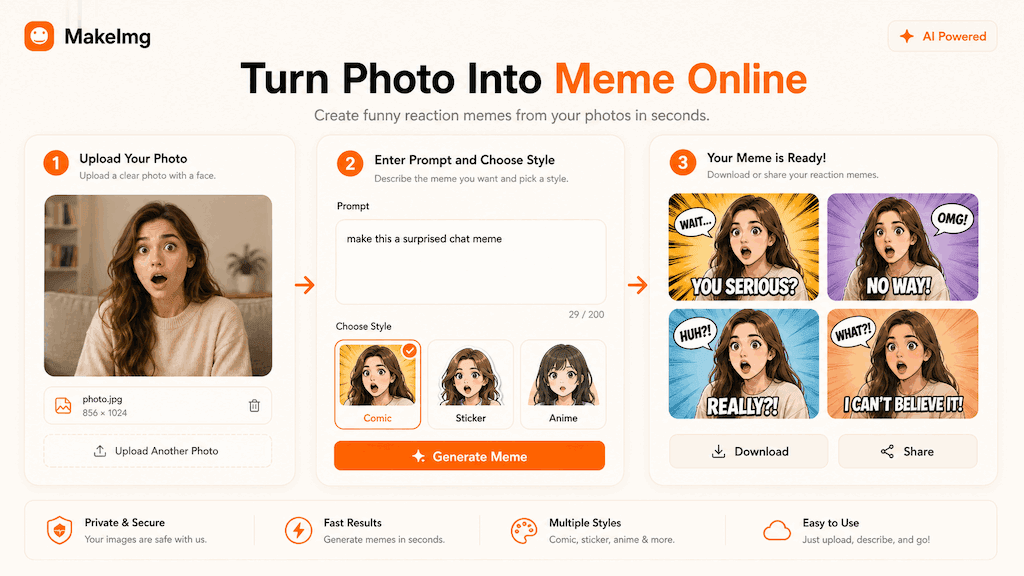
- 1
Start with a readable image
Use one main subject, visible facial expression, and enough resolution. A funny photo can work, but a clean photo with a strong expression gives the AI more usable structure.
- 2
Choose the right output style
For social reactions, choose comic, sticker, anime, or casual illustration. These styles make exaggeration acceptable and help the final image remain clear on mobile screens.
- 3
Write a direct prompt
Mention the desired emotion and context. For example: turn this photo into a surprised reaction meme for group chats, clean background, expressive face, same subject.
- 4
Generate multiple variants
A single output may not catch the best expression. Generate a pack so you can select the strongest panels and avoid relying on one frame.
- 5
Download and test at chat size
Preview the meme at a small size before publishing. If the expression cannot be understood in a chat bubble, simplify the background or regenerate with bolder emotion words.
Where This Works Best
Photo memes work best in channels where the audience already understands the subject. A founder photo, a pet, a mascot, or a recurring community character can become a recognizable reaction format. The stronger the shared context, the less explanatory text you need.
For public social posts, keep the image friendly and avoid misleading edits. If the person in the photo is real, use images you have the right to use and avoid edits that would confuse viewers about real events or identity.
Prompt and Editing Tips
Small prompt changes can have a large effect on the final meme quality.
- Use emotion words: shocked, delighted, suspicious, exhausted, confused, proud.
- Add format words: reaction meme, chat sticker, clean 3x3 grid, simple background.
- Use consistency words: same subject, same outfit, similar face shape, unified style.
- Avoid too many jokes in one prompt. Generate the reaction first, then add caption text later if needed.
Quality Checklist Before You Generate
Meme quality is mostly about instant recognition. The subject should be readable before the viewer zooms in, and the emotion should be clear before any caption explains the joke. For a photo to meme generator workflow, start by deciding what success looks like before you press generate. The output may be attractive, but it still needs to solve the original task: clearer restoration, a stronger reaction, a more natural composition, or a cleaner edit.
Check the input first. Make sure the source image, prompt, style choice, and final format all point in the same direction. If you are using MakeImg Create, keep the instruction short enough for the model to follow and specific enough that it cannot ignore the main request.
- One clear subject or task is easier to control than several competing goals.
- Simple backgrounds usually improve readability and reduce unwanted artifacts.
- Consistent style words help the model keep the result cohesive across a full set.
- Download only after checking the result at the size where it will actually be used.
Common Mistakes to Avoid
The most common mistake is asking for too much: too many styles, too many props, too many characters, or too much text inside the image. A meme pack becomes more useful when every panel has one job. This matters for SEO-style tutorial workflows too: people searching for photo to meme generator usually want a usable result quickly, not a complex art experiment that needs many manual fixes afterward.
Before downloading, look at the full grid and ask whether each panel would work as a standalone reaction in a fast chat. If the answer is unclear, simplify the background and make the emotion stronger. If the first result is close but not ready, change one variable at a time. Edit the emotion list, simplify the style, clarify the reference roles, or narrow the edit instruction. Changing everything at once makes it hard to learn what improved the output.
Keep the original file and the generated result separate. That gives you a clean rollback point, makes comparison easier, and helps you regenerate later if you find a better prompt or model provider.
Publishing and Reuse Notes
After the output is ready, name the file in a way that matches the task, such as turn-photo-into-meme. Clear filenames make it easier to find the asset later, especially when you are testing several MakeImg workflows in the same week.
If you plan to publish the image publicly, review rights, privacy, and context before posting. Use source material you own or have permission to use, avoid misleading claims, and keep a copy of the prompt so you can explain or reproduce the creative process later.
- Save the final image and the source image in the same project folder.
- Keep a short note with the prompt, style, and tool path used for generation.
- Recheck the output on mobile because most meme and social images are consumed there.
FAQ
Common answers before you publish a photo-based meme.
Is an AI photo meme the same as a caption meme?
No. A caption meme usually keeps the original image and adds text. An AI photo meme can restyle the image and create new reaction variations based on the source.
Why should I generate a grid instead of one image?
A grid gives you options. You can pick the best panel, share the whole pack, or download individual expressions for different conversations.
Can I remove the background?
You can ask for a simple or sticker-like background. For exact background removal, use a dedicated editing workflow after generation.
Create with MakeImg
Use this guide as a starting point, then try the matching MakeImg tool to generate, restore, compose, or edit your own images.
Open the tool