Discord sticker maker
Discord Sticker Maker
Use MakeImg as a Discord sticker maker to create reaction memes that stay readable in fast chats and reusable across server conversations.
Quick Answer
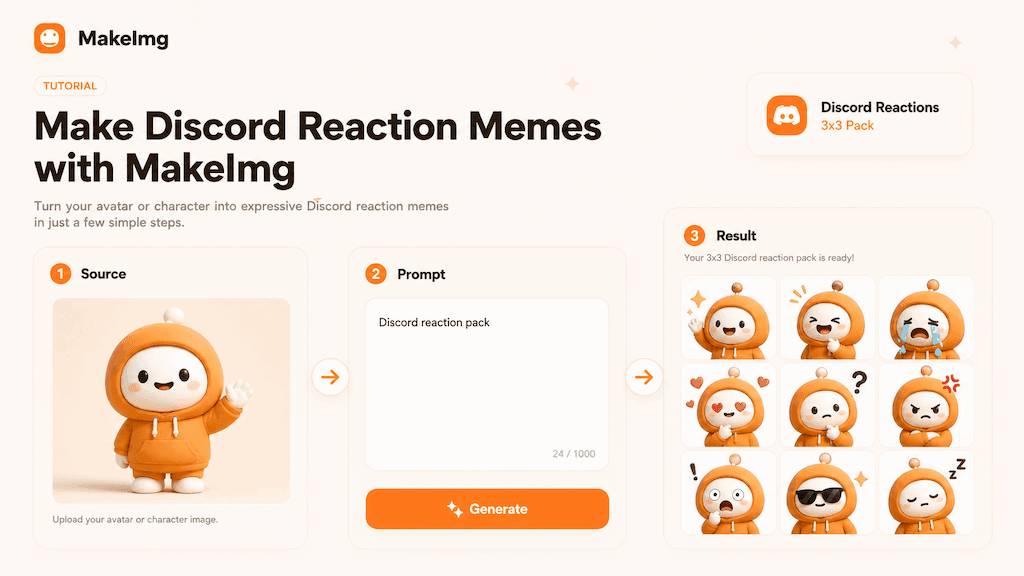
A Discord sticker maker should start with a small set of emotions your community actually uses: yes, no, confused, shocked, proud, tired, waiting, celebrating, and speechless. Generate the images as a consistent pack so the reactions feel like one shared visual language instead of random internet images.
Discord moves quickly, so the best reaction memes are simple. A centered subject, bold expression, clean background, and no tiny text will usually outperform a complex illustration that looks good only at full size.
Step-by-Step Tutorial
Build the pack around chat readability first, then refine the visual style.
- 1
Choose a community-safe subject
Use an original mascot, avatar, pet, product character, or image you have permission to use. A recurring subject helps members recognize the reaction instantly.
- 2
List the reactions before generating
Write down the exact emotions you want. Discord packs work best when each sticker answers a different conversation moment.
- 3
Use a sticker-friendly style
Ask for clean sticker style, centered composition, simple background, and bold facial expression. Avoid busy scenes and small details.
- 4
Generate a 3x3 reaction grid
A grid gives you nine options in one pass and makes it easy to compare whether emotions repeat or feel distinct.
- 5
Test at Discord size
Preview the result small. If the emotion is not clear in a chat window, regenerate with stronger expression words and less background detail.
Best Use Cases
Discord reaction memes are useful for creator communities, game servers, startup teams, support communities, and private friend groups. They make repeated replies feel more personal without requiring a custom illustration every time.
They also help a server build identity. When members reuse the same mascot reactions, the images become part of the community's internal language.
Prompt Suggestions
Use concise prompts that define subject, format, and emotion range.
- Create a 3x3 Discord reaction meme pack, cute original mascot, clean sticker style, centered subject, emotions: yes, no, confused, shocked, proud, tired, waiting, celebrating, speechless.
- Generate Discord-ready chat reactions, simple warm background, bold expression, consistent character design, no text, readable at small size.
- Make a reusable community meme sticker pack for Discord, friendly mascot, rounded shapes, soft orange accents, nine distinct emotions.
Quality Checklist Before You Generate
Meme quality is mostly about instant recognition. The subject should be readable before the viewer zooms in, and the emotion should be clear before any caption explains the joke. For a Discord sticker maker workflow, start by deciding what success looks like before you press generate. The output may be attractive, but it still needs to solve the original task: clearer restoration, a stronger reaction, a more natural composition, or a cleaner edit.
Check the input first. Make sure the source image, prompt, style choice, and final format all point in the same direction. If you are using MakeImg Create, keep the instruction short enough for the model to follow and specific enough that it cannot ignore the main request.
- One clear subject or task is easier to control than several competing goals.
- Simple backgrounds usually improve readability and reduce unwanted artifacts.
- Consistent style words help the model keep the result cohesive across a full set.
- Download only after checking the result at the size where it will actually be used.
Common Mistakes to Avoid
The most common mistake is asking for too much: too many styles, too many props, too many characters, or too much text inside the image. A meme pack becomes more useful when every panel has one job. This matters for SEO-style tutorial workflows too: people searching for Discord sticker maker usually want a usable result quickly, not a complex art experiment that needs many manual fixes afterward.
Before downloading, look at the full grid and ask whether each panel would work as a standalone reaction in a fast chat. If the answer is unclear, simplify the background and make the emotion stronger. If the first result is close but not ready, change one variable at a time. Edit the emotion list, simplify the style, clarify the reference roles, or narrow the edit instruction. Changing everything at once makes it hard to learn what improved the output.
Keep the original file and the generated result separate. That gives you a clean rollback point, makes comparison easier, and helps you regenerate later if you find a better prompt or model provider.
Publishing and Reuse Notes
After the output is ready, name the file in a way that matches the task, such as make-discord-reaction-memes. Clear filenames make it easier to find the asset later, especially when you are testing several MakeImg workflows in the same week.
If you plan to publish the image publicly, review rights, privacy, and context before posting. Use source material you own or have permission to use, avoid misleading claims, and keep a copy of the prompt so you can explain or reproduce the creative process later.
- Save the final image and the source image in the same project folder.
- Keep a short note with the prompt, style, and tool path used for generation.
- Recheck the output on mobile because most meme and social images are consumed there.
FAQ
These questions come up when preparing Discord-ready reaction images.
Should Discord reaction memes include text?
Usually not in the first generation. Small text can become unreadable. Generate clean images first and add short labels later only if needed.
How many reactions should I start with?
Nine is a practical first set because it covers the most common chat emotions without making review difficult.
Can I use a photo of a real person?
Only use photos you own or have permission to use, and avoid edits that mislead viewers about real identity or events.
Create with MakeImg
Use this guide as a starting point, then try the matching MakeImg tool to generate, restore, compose, or edit your own images.
Open the tool