Slack reaction image maker
Slack Reaction Image Maker
Create Slack reaction images for team updates, launches, bug reports, and internal jokes with readable expressions and consistent style.
Quick Answer
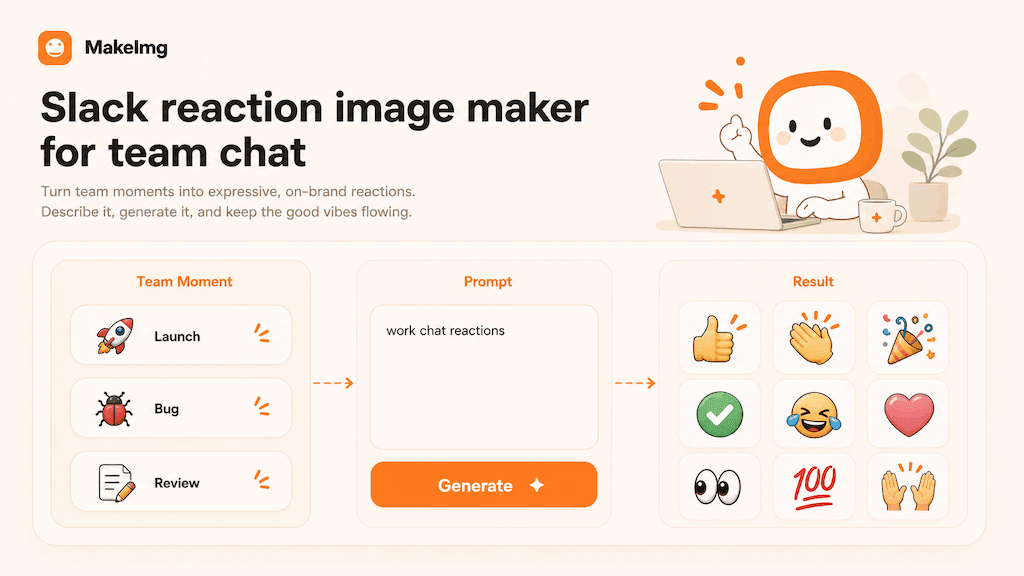
A Slack reaction image maker helps teams create lightweight visuals for daily work conversations: shipped it, found a bug, waiting for review, customer loved it, meeting survived, and launch day energy. The goal is quick recognition, not complex art.
Use original mascots, abstract characters, or owned images. Keep the tone friendly and workplace-safe so the image can be reused across channels without extra context.
Step-by-Step Tutorial
Start with team communication moments rather than random jokes.
- 1
List recurring team moments
Think about product launches, QA, code review, support wins, incident recovery, customer praise, and Monday planning.
- 2
Choose a consistent character
A simple mascot or original office character keeps the pack cohesive and avoids using real coworker photos unnecessarily.
- 3
Generate a balanced set
Include positive, neutral, and stressful reactions. A useful work pack needs celebration and confusion, not only jokes.
- 4
Avoid tiny text
Slack image previews can be small. Let the expression carry the meaning and add text in the message if needed.
- 5
Review for tone
Make sure the image is appropriate for a mixed workplace audience before sharing it in team channels.
Best Use Cases
Slack reaction images work well for product teams, indie builders, support groups, design teams, and creator operations. They make repeated status updates feel less dry while keeping communication quick.
They are especially useful around launches because the same visual language can cover anticipation, bug panic, approval, celebration, and post-launch exhaustion.
Prompt Suggestions
Use work-context prompts that stay friendly and clear.
- Create a 3x3 Slack reaction image pack for a product team, friendly office mascot, emotions: shipped, bug found, waiting for review, approved, confused, celebrating, tired, focused, relieved.
- Generate internal work chat memes, clean sticker style, simple background, no text, warm orange accents, readable at small size.
- Make a team reaction pack for launch week, cute original character, consistent design, expressive but professional tone.
Quality Checklist Before You Generate
Meme quality is mostly about instant recognition. The subject should be readable before the viewer zooms in, and the emotion should be clear before any caption explains the joke. For a Slack reaction image maker workflow, start by deciding what success looks like before you press generate. The output may be attractive, but it still needs to solve the original task: clearer restoration, a stronger reaction, a more natural composition, or a cleaner edit.
Check the input first. Make sure the source image, prompt, style choice, and final format all point in the same direction. If you are using MakeImg Create, keep the instruction short enough for the model to follow and specific enough that it cannot ignore the main request.
- One clear subject or task is easier to control than several competing goals.
- Simple backgrounds usually improve readability and reduce unwanted artifacts.
- Consistent style words help the model keep the result cohesive across a full set.
- Download only after checking the result at the size where it will actually be used.
Common Mistakes to Avoid
The most common mistake is asking for too much: too many styles, too many props, too many characters, or too much text inside the image. A meme pack becomes more useful when every panel has one job. This matters for SEO-style tutorial workflows too: people searching for Slack reaction image maker usually want a usable result quickly, not a complex art experiment that needs many manual fixes afterward.
Before downloading, look at the full grid and ask whether each panel would work as a standalone reaction in a fast chat. If the answer is unclear, simplify the background and make the emotion stronger. If the first result is close but not ready, change one variable at a time. Edit the emotion list, simplify the style, clarify the reference roles, or narrow the edit instruction. Changing everything at once makes it hard to learn what improved the output.
Keep the original file and the generated result separate. That gives you a clean rollback point, makes comparison easier, and helps you regenerate later if you find a better prompt or model provider.
Publishing and Reuse Notes
After the output is ready, name the file in a way that matches the task, such as slack-reaction-image-maker. Clear filenames make it easier to find the asset later, especially when you are testing several MakeImg workflows in the same week.
If you plan to publish the image publicly, review rights, privacy, and context before posting. Use source material you own or have permission to use, avoid misleading claims, and keep a copy of the prompt so you can explain or reproduce the creative process later.
- Save the final image and the source image in the same project folder.
- Keep a short note with the prompt, style, and tool path used for generation.
- Recheck the output on mobile because most meme and social images are consumed there.
FAQ
Useful decisions for team-friendly reaction images.
Should I use real teammate photos?
Avoid real photos unless everyone involved has clearly agreed. Original mascots or fictional characters are safer and easier to reuse.
What makes a work meme reusable?
A reusable work meme expresses a common situation without targeting a specific person or requiring a long explanation.
Can these be branded?
Yes, but keep branding subtle. A color accent or mascot works better than heavy logos in a casual team chat.
Create with MakeImg
Use this guide as a starting point, then try the matching MakeImg tool to generate, restore, compose, or edit your own images.
Open the tool